Well, congratulations – you decided to start with setting up a Briefing Forms FeatureContent App! 🎉
We will start with a simple example – let us create a textarea HTML input field for
our users to add some notes within our Content App.
<!doctypehtml><htmlclass="no-js"lang=""><head><metacharset="utf-8"><title>My Content App</title><scriptdeferhref="//code.assets.showcase-app.io/sdk/scp.briefing.js?latest"></script></head><bodydata-sc2-container><!-- We are starting here --></body>
As you can see, this was not that complicated, right?
It is just a plain HTML file which gets loaded by SCP whenever a user wants to edit
content of a Material, based on the Material Type.
You probably did notice that we have a script HTML tag which is referring to the
core Content App JavaScript SDK of SCP.
This is required as we want to use the Briefing Forms Feature which depends heavily on said SDK.
WARNING
You do not need to import the Script manually if you use the legacy hosting feature
of SCP (Briefings in Config Repositories).
The data-sc2-container attribute is the most important one as it marks the starting point
where the SCP Briefing Form Feature then tries to find any data-sc2 field.
Readability
For better readability, the full default HTML boilerplate code will not be shown in all the
following examples.
This also stays true for every following chapter if not explicitly stated otherwise.
<bodydata-sc2-container><divdata-sc2-editable="notes">
What are your thoughts?
</div></body>
That's it – you have created your first textarea HTML input form field 🎉
It will now automatically be saved by SCP whenever a user changes the input,
thanks to the data-sc2-editable="notes" tag attribute of the textarea HTML input form field.
It also reacts now to the state of the underlying
Material and will be disabled when
any saving or updating process is in progress or editing will not be allowed.
You can also define any HTML non-input field to be a form input field HTML tag anyways.
<bodydata-sc2-container><h1>My Briefing</h1>
What do you like better?
<selectdata-sc2-editable="fruits_or_veggies"><optionvalue="fruits">Fruits</option><optionvalue="veggies">Veggetables</option></select>
What is your favorite?
<imgdata-sc2-editable="favorite">
Lets us know what you think
<divdata-sc2-editable="notes">
What are your thoughts?
</div></body>
With the Briefing Forms Feature enabled you can get the usability behind the data-sc2-editable tag attribute
also on any non-input form field HTML tag and SCP will automatically create a WYSIWYG editor in it,
powered by Froala Editor.
You can also define what WYSIWYG options the user will have but this will be handled later, in the
Advanced WYSIWYG chapter.
You can probably guess by now how to user the data-sc2-editable but we
will do even more deep dives into this nonetheless.
<bodydata-sc2-container><h1>My Briefing</h1>
What do you like better?
<selectdata-sc2-editable="fruits_or_veggies"><optionvalue="fruits">Fruits</option><optionvalue="veggies">Veggetables</option></select>
What is your favorite?
<imgdata-sc2-editable="favorite">
Lets us know what you think
<divdata-sc2-editable="notes">
What are your thoughts?
</div></body>
The example shows that you can also use the data-sc2-editable tag attribute on a select HTML tag element.
Not only can you use the Briefing Forms Feature to manipulate and enhance the User Experience while working
with your Content App, images can also be stored with SCP.
The user simply needs to pick a locally stored image which then will be uploaded into SCP automatically.
Let us now ask the user for images of their favorite fruits and have them upload them:
<bodydata-sc2-container>
Please upload your top three fruit images:
<inputtype="file"data-sc2-editable="favorite_fruits"data-sc2-max-files="3"accept="image/*"></body>
With the snippet above, users will be allowed to upload three files of any image based MIME type.
MIME types
Please pay mind to which MIME types you allow as this can also end as being a security concern.
The detection of the real MIME type, done by the Browser here, can still be manipulated in the end
but with this you at least did everything you could do without spending too much time on it.
You might have noticed that we reuse the same data-sc2-editable key for all the items.
Like with JavaScript Frameworks - like Vue.js or alpine.js - this is best practice
if you want SCP to store only one of the given values related to the context.
`data-sc2-editable` Keys are unique
Please ensure that you do not use the same data-sc2-editable keys for different kinds of HTML tag elements.
Doing so will break the Briefing Form as SCP tries to create any WYSIWYG editor instance as well as that any
I/O operation will be based on the unique key of the data-sc2-editable field.
For HTML Fields, which are rendered as WYSIWYG editors, SCP offers a few options you should note:
data-sc2-single-line
By default, an SCP rendered WYSIWYG editor input field is multiline-enabled, so that the user
can add multiple paragraphs within the editor.
This is an unintended feature when it comes to headlines or something similar, where you can
disable this behavior by adding the data-sc2-single-line tag attribute to the HTML tag element.
data-sc2-toolbar-buttons
With Froala Editor inside SCP, when you want to enable or disable
certain toolbar buttons for some (input form) HTML tag elements it can be done by the following tag attribute:
You can think of it as a mathematical equation – we did remove the bold and superscript options by prepending
a - to it and added the italic option by adding a + to it.
Briefing Forms
The Briefing Forms Feature is disabled by default and will be enabled when the
Material allows content editing.
When SCP enables or disables the Forms (due to e.g. saving after an update in any of the fields has happened)
this is reflected on every editable input field and button that initializes External Services.
<bodydata-sc2-container><h1>My Briefing</h1>
What do you like better?
<selectdata-sc2-editable="fruits_or_veggies"><optionvalue="fruits">Fruits</option><optionvalue="veggies">Veggetables</option></select>
What is your favorite?
<imgdata-sc2-editable="favorite">
Lets us know what you think
<divdata-sc2-editable="notes">
What are your thoughts?
</div></body>
The example shows that you can also use the data-sc2-editable tag attribute on a select HTML tag element.
Inside your Content App you can check if the current user is a Power User
and for example hide/show options based on his state. This will usually help to keep the Content App simple to use
for the majority of users while Content App Power Users might have access to more advanced and complex features.
To easily work with this, there is a data-helper which will conditionally show/hide elements based on the status of
the user:
<bodydata-sc2-container><divdata-scp-hide-for-power-users>
I will be hidden for power users but visible for normal users.
</div><divdata-scp-hide-for-normal-users>
I will be hidden for normal users but visible for power users.
</div></body>
Don't forget the permission
The permissionusesContentAppPowerFeatures needs to be granted to a user to designate him to be a Power User.
All other users will be treated as normal users.
You can also use this inside your scripts by using the window.showcase.user.isPowerUser getter.
You can also work with the general permission data-helper if the power user status does not
fulfill your needs already. It allows you to hide or show elements based on a specific permission:
<bodydata-sc2-container><divdata-scp-required-permissions="copyMaterials">
You can copy me... Really – you are allowed to!
</div><divdata-scp-required-permissions="changeStatus,editBriefing">
You can edit me, but you might need to change the status first :)
</div></body>
Javascript Way
You can easily access the permission helper by referring to the active user with window.showcase.user.hasPermission('singlePermission') or
window.showcase.user.hasPermissions('listOf,permissions').
The Briefing Form Feature adds CSS classes to your body to let you control visibility and style within a
given state of the Material,
which also happens based on it's Meta Data:
CSS Class
State
sc2-ready
Is attached when the briefing form was initialized properly
sc2-editable
Is attached when the briefing form can be edited by users
sc2-rendition
Will be attached once SCP is generating a rendition (image or pdf) of the briefing form
sc2-rendition-png
Will be attached when creating a PNG from the briefing form
sc2-rendition-pdf
Will be attached when SCP creates a PDF out of the briefing form
Removing Elements for PDFs or images
If you want to remove markup completely when SCP creates a Rendition from the Briefing Form,
you can add data-sc2-remove as an attribute tag to any HTML tag element you want see removed for it.
For more sophisticated use cases within Briefing Forms it is required to leverage JavaScript and
consume some Browser Events SCP fires within your Content App.
Let us have a look at an example for this:
<bodydata-sc2-container>
What do you like better?
<selectdata-sc2-editable="fruits_or_veggies"><optionvalue="-"selected>-</option><optionvalue="fruits">Fruits</option><optionvalue="veggies">Veggetables</option></select><divclass="your-choice"></div><script>
document.addEventListener('sc2.editor.fruits_or_veggies.updated',function(){
document.querySelector('.your-choice').innerHTML = briefing.getContent('fruits_or_veggies')})</script></body>
As you can see, we are registering an event listener for sc2.editor.fruits_or_veggies.updated
which will be emitted when the user (or SCP internally) changes the value of the
data-sc2-editable="fruits_or_veggies" tag attribute defined HTML tag element.
There are several predefined Browser Events (JavaScript Events) implemented and for
the remainder of this part of the documentation, we'll discuss each event available.
Is dispatched when the Briefing Forms' JavaScript has been loaded.
Use this Browser Event if you want to execute some initialization logic.
You can not rely on editor data before this Browser Event has been fired.
This Browser Event works like the sc2.editor.updated one but (by default) just for a
specific Froala Editor field.
It uses the name of the editor which you've defined via the data-sc2-editable= property.
This is also what you can define as a defaults field within the
App Configuration.
Whenever an update happens within the Briefing Forms inside the
Property panel this event will be fired.
This can be triggered due to changes made by the user or the system.
Is fired when the briefing gets disabled which means that SCP has decided to deactivate all content editing feature
due to your business rules like material options.
When the Content App is being loaded for Renditions this command will be utilized for
sending over the initial settings' payload via postMessage into the iframe.
It is similar to the sc2.briefing.app_configuration.updated event, but just as an indicator when the
configuration of the Content App itself was updated.
This will eventually also trigger that event and sc2.briefing.app_configuration.{type}.updated, though.
In the image above you can see an example for that you can for example also configure all your available
Brand Schemes.
For a deep dive into this matter please read the full disclosure under
Configuring Content Apps.
Content Apps
As data management is under full control of your Content Apps you
also have access to all your Configurations
which you will benefit from greatly in your Briefing - but its utilization is different.
If in question, refer to the full Content Apps documentation or –
if you are about to create your own custom one –
jumpstart to the Custom Content Apps guide.
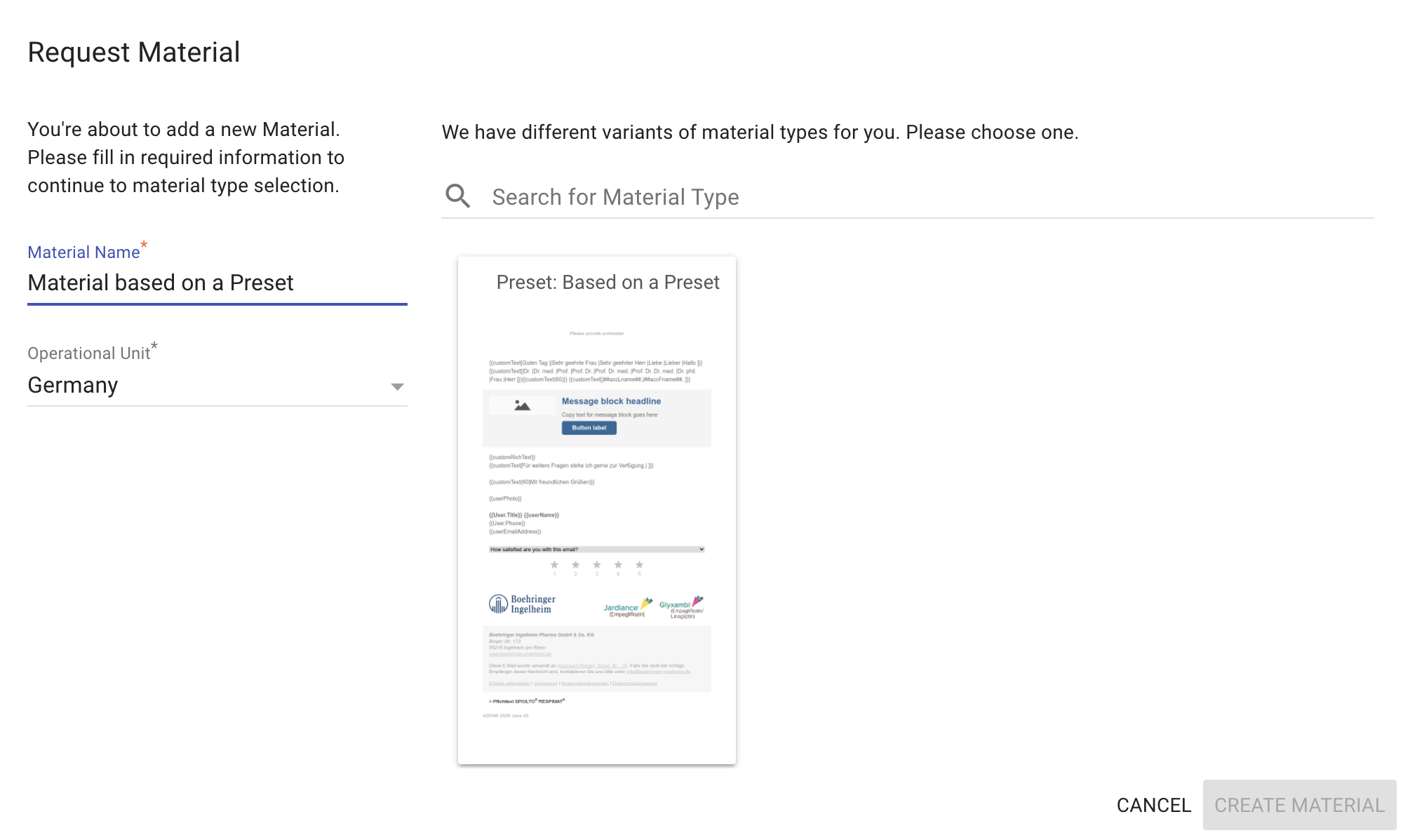
Within SCP you can also convert a Material into a Preset.
If you have worked with SCP (e.g. as a customer) from the beginning, you will definitely have
cherished this back when it was introduced to everyone.
Presets can be created and managed by everyone who has the right Permissions.
It can be then be used to be just another alternative of the Material Type it is based on,
that you can then use as a basis of where you want to start from, without the hazzle of having to create
a completely new Material Type all along - as long as doing this fits your needs.
You can define which Materials are valid to be transformed into a Preset
by what you define in your SC Managers' area for them.